








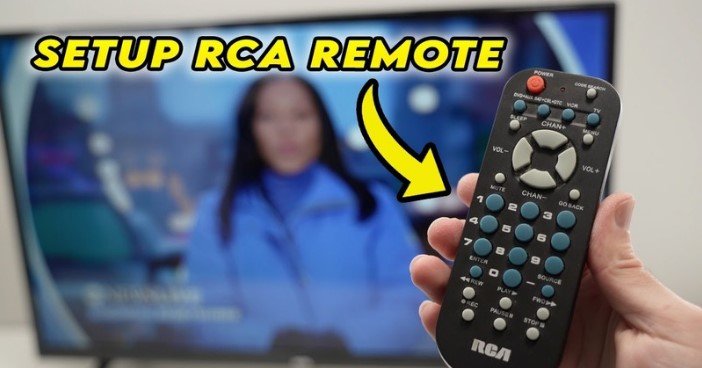
If you’ve recently purchased an RCA Universal Remote and need to pair it with your TV or other devices, you’re in the right place! Pairing the remote can seem like a complicated task, but it’s actually basic when you follow the right steps. In this article, we’ll walk you through the process of pairing your RCA Universal Remote with your TV, Blu-ray player, DVD player, or any other compatible device.
What is an RCA universal remote?
An RCA Universal Remote is a convenient device that allows you to control multiple electronic devices with just one remote. Whether you need to control your TV, Blu-ray player, DVD player, or even a VCR, the RCA Universal Remote makes it easy to switch between devices without needing multiple remotes. The key to using it effectively is programming it with the correct codes for each device.
In this guide, we’ll show you how to pair your RCA Universal Remote with a TV using the right RCA codes, which will ensure that you can control your device seamlessly.
How to Pair Your RCA Universal Remote: Step-by-Step Instructions
people can read this: Who Is Rachel Catudal Actor Brandon Quinn’s Wife and Her Life Beyond the Spotlight
Follow these simple steps to pair your RCA Universal Remote with your TV or another device:
Step 1: Locate the Remote Control Code
The first step in pairing your RCA Universal Remote with your TV or device is to find the correct remote control code. Each device requires a specific code for pairing, and there are multiple codes to try. We’ve made it easy for you by providing a list of RCA codes for various devices in the next section.
Start by checking the list below to find the code for the device you’re pairing. If the initial code does not work, please continue trying the listed codes until one is successful.
Step 2: Turn On the Device You Want to pair with.
Before pairing your remote, you need to make sure that the device you want to control (such as your TV, Blu-ray player, or DVD player) is turned on. This ensures that the remote can communicate with the device during the setup process. Furthermore, make sure the indicator light on the RCA remote is on.
Step 3: Press and Hold the “Code Search” Button
On your RCA Universal Remote, locate the Code Search button. It is typically located at the top of the remote. Press and hold this button until the indicator light stays on. Once it is on, you can release the Code Search button.
Step 4: Press the Corresponding Device Button
Now, you need to press the device button on your remote that matches the device you’re pairing. For example:
- Press the TV button if you are pairing with your television.
- Press the DVD button if you’re pairing with a DVD player.
- Press the BLU-RAY button for a Blu-ray player.
Once you press the device button, the indicator light should blink and then stay on.
Step 5: Enter the Device Remote Code
After pressing the corresponding device button, it’s time to enter the device remote code. Using the number buttons on the RCA Universal Remote, enter the first code from the list you found earlier.
- If the code is entered correctly, the indicator light will turn off.
- If the indicator light blinks and stays on, this means the code wasn’t accepted. Simply continue to the next code in the list and try again.
Step 6: Test the Remote
Once the indicator light turns off, you can test the remote by trying to control the device. For example, try turning the TV on and off or adjusting the volume. If everything works, congratulations, you’ve successfully paired your RCA Universal Remote!
Step 7: Repeat the Process If necessary.
If the remote isn’t working after you’ve entered the code, don’t worry! Simply repeat the process by trying the next code in the list. It may take a few tries to find the correct code for your device, but once you find it, the remote will work perfectly.
RCA Universal Remote Codes
Here are some examples of RCA Universal Remote Codes for popular TV brands:
For Samsung TVs:
- 1004, 1015, 1063, 1090.
For Sony TVs:
- 1000, 1013, 1033, 1056.
For LG TVs:
- 1019, 1042, 1080, 1094
For Vizio TVs:
- 1012, 1033, 1065, 1071
For Panasonic TVs:
- 1009, 1011, 1020, 1064
For Sharp TVs:
- 1005, 1016, 1034, 1067
Make sure to find the code that corresponds to the specific brand and model of the device you want to control. If you’re using a different device, check the manual or look up more codes online.
Troubleshooting Tips
If you’re having trouble pairing your RCA Universal Remote, here are a few troubleshooting tips:
- Check the Batteries: Make sure the batteries in your remote are fresh. Weak batteries can interfere with the remote’s signal.
- Ensure the Device Is Powered On: Your device must be turned on during the setup process.
- Try a Different Code: If the first code doesn’t work, don’t give up! Try the next code in the list.
- Reset the Remote: If you’re still having trouble, you can reset the remote to its default settings. To achieve this, press and hold the Code Search button until the indicator light turns off.
- Consult the Manual: For further assistance, consult the manual that came with your RCA Universal Remote for more specific troubleshooting steps or codes.
Conclusion
You can complete the simple process of pairing your RCA Universal Remote with your TV or other devices in just a few steps. By following the instructions outlined in this article, you can quickly and easily set up your remote and start enjoying the convenience of controlling multiple devices with just one remote.
Remember, if one code doesn’t work, keep trying the others, and don’t hesitate to reach out for further help if needed. Once you have your RCA Universal Remote paired and functioning properly, you’ll enjoy a seamless entertainment experience.
FAQs
How do I find the RCA code for my device?
- You can find the RCA codes in the remote’s manual or search online for specific codes for your device brand.
What should I do if the remote doesn’t work after entering the code?
- Try entering the next code in the list and make sure the device is turned on during the setup.
Can I use the RCA Universal Remote with other devices besides my TV?
- Yes, the RCA Universal Remote can be used with other devices like DVD players, Blu-ray players, and soundbars. Just follow the same setup steps.
For more updates visits: OPEN POSTS


1 Comment
Pingback: Viprow: A Comprehensive Guide for Soccer Fans